
CellGate Mobile Connect
> STEP ONE: Download the CellGate Mobile Connect app to your phone:
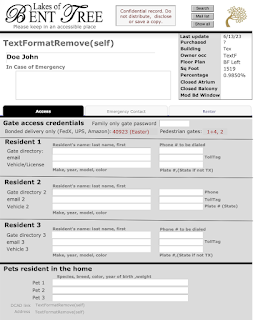
STEP TWO: Print out the Safety Profile that was emailed to you on July 8, 2023
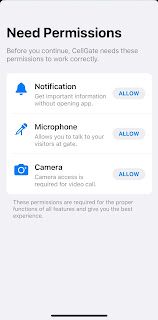
STEP Three: Open app and select all options.
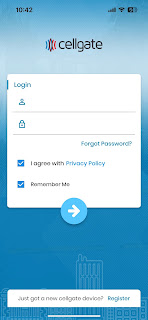
STEP Four: .Go to the next page and enter your log-in (the email address from your Security Profile) and password (use "Welcome1"). Select all other options. Note, only the email associated with a TollTag number on the Safety Profile will work.
You're set up!
Additional suggestions;
STEP ONE: Download the CellGate Mobile Connect app to your phone: STEP TWO: Print out the Safety Profile that was emailed to you on July 8, 2023
STEP Three: Open app and select all options.
STEP Four: .Go to the next page and enter your log-in (the email address from your Security Profile) and password (use "Welcome1"). Select all other options. Note, only the email associated with a TollTag number on the Safety Profile will work.
You're set up!
- Add "Front Gate" (972) 231-1999 to your phone directory/contacts list.
- Go to "Settings" in the CellGate Mobile Connect app and select Biometric Sign in. This will make the app react more quickly to calls coming in from the Gate Console Directory..
- Go to "Reset Password" in the CellGate Mobile Connect app and customize your password
- Make a note on your Safety Profile that the password for UPS, FedEx, Amazon is now 40923 (previously it was six digits 040923).


Comments
Post a Comment
............*** HOW TO ENTER COMMENT ***............
1. Click on "Enter Comment"
2. Select: "Name/URL"
3. Type name and address (no URL needed)
4. Click on "Continue"
5. Type in your comment
6. Click on "Publish"
Unidentified comments will be deleted as spam.